
MODUNARU PC PHOTO EDITING
Edit photo layers on a PC and save transparent PNGs
Use the layer editor when you want to place a caption beside a photo or move several photos independently. A single coffee-and-caption example shows the difference between exporting the canvas, exporting only a group, and keeping a project for later editing.
Basic edits for one photo; layers for a composition
The existing basic photo tool can resize, compress, crop and save a single photo. The layer editor is for PC compositions in which photos, text and shapes move independently, have a stacking order, and can form groups. Use the existing basic tool on a phone. The new layer workflow in this guide was checked on a PC.
- Items near the top of the layer list appear in front. Name your layers so photos and captions are easy to find later.
- Use JPG, PNG or WebP. The new PC editor accepts up to 25 MB and 16 megapixels per photo, nine original photos and 30 layers. Choose several files together or drop them on the workspace.
- The canvas is limited to 4,096 px per side and 16 megapixels. Large photos or complex projects can take longer depending on device memory and speed.
Example 1. Arrange a photo and caption, then group them
Create a blank project and add a photo
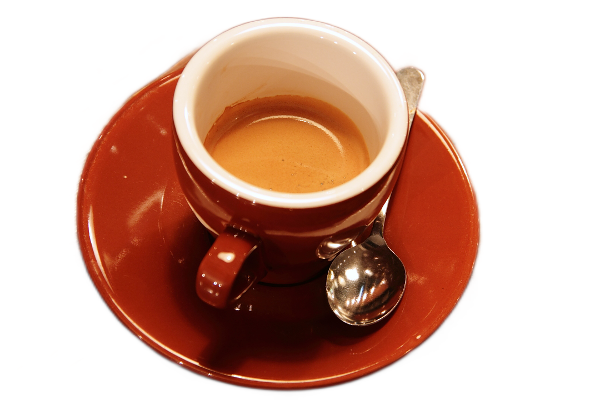
Choose Project file → Start with a blank canvas and create a 600 × 400 px canvas. Download the starting PNG below and add it with Photo. Its background has already been removed; you do not need to run removal again for this example.Set the photo frame
Select the photo and choose Circle in Photo frame on the right. This example uses a 200 × 200 px photo, rotated 22°. Use Adjust photo inside the frame to check its position and zoom before applying.Type a caption and add effects
Choose Text and click where you want the caption. The example uses two lines, “투명 PNG / 선택 저장”, at 32 px and 25° rotation, with a white outline and soft shadow from Outline & shadow. Click the text to type again, or drag to move it.Group the photo and caption
Hold Shift and select both items in the layer list, then press Ctrl+G. Selecting the group lets you move, scale and rotate both together. Select a child layer to edit only the caption, or press Ctrl+Shift+G to ungroup. Turn off Auto snap, or hold Alt during a drag, when you need free placement.
Keyboard instructions use Windows shortcuts. While typing in a field or on-photo text, keys such as Ctrl+Z or Delete can apply to that input. Finish typing and select a layer or the canvas before using editor shortcuts.
Example 2. Save the group instead of the whole canvas
Select what to export
Select the group in the layer list. Selecting a child layer instead exports only that item. For a multiple selection, check that every item you want is selected.Create the selection PNG
Choose Save selection PNG below the layer list, enter a name, then Create PNG. Only visible selected content is drawn, and transparent outer padding is trimmed. Locked layers can be exported; hidden layers and zero-opacity items are excluded.Check the result and download
Check the photo, text outline and shadow in the checkerboard preview, then choose Download PNG. The checkerboard is not saved. Internal transparent holes remain, and selected content outside the canvas is included.
Use Export image for the whole canvas, Save selection PNG for selected elements, and Project file to keep photos and text editable. A PNG is flattened; reopening it does not restore separate layers.
MEASURED DOWNLOADS
Actual saved results from the same coffee photo
Measured on: · Saved with the Modunaru layer editor in Ego Lite on a PC. File sizes were measured from the downloaded files.
The starting PNG was made by removing the background from a public CC0 coffee photo with Modunaru. Small colored fringes around the cup and saucer remain; this example does not claim perfect removal. The photo and caption were arranged using a circular frame, rotation, an outline and a shadow, then exported as a group.
Background-removed coffee photo
Circular photo and caption group
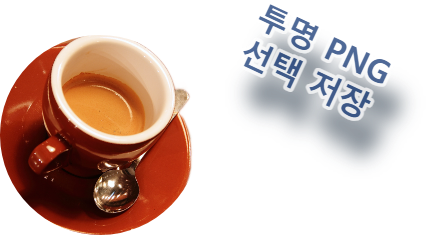
The checkerboard is only a display aid for transparency.

| File | Dimensions | Actual size | Contents |
|---|---|---|---|
| Starting PNG | 600 × 400 px | 293,435 bytes (293.435 KB) | One background-removed photo |
| Selection PNG | 426 × 235 px | 126,959 bytes (126.959 KB) | Circular photo + caption, outer padding trimmed |
| Whole PNG | 600 × 400 px | 133,127 bytes (133.127 KB) | Whole canvas, flattened layers |
| Project file | — | 294,566 bytes (294.566 KB) | Source photos, layers and settings |
Source credit: Rachel Michetti · Original photo · CC0. File size and edge rendering can vary with the photo, settings and browser. Keep your original download separately.

Example 3. Keep the caption editable for later
Save an editable project on your device
Open Project file, choose Prepare project file, then download it. A .modunaru file contains the current layers, groups, canvas settings and referenced source photos. Check that the file really exists in your device’s downloads.Inspect and reopen the project
Choose the saved file with Choose project file and review the inspection result. Replace current work and open replaces this tab’s project and undo history, so save any work you want to keep first. After opening, photos and captions remain separately editable.Check the local draft status too
After editing, check for Draft saved in this browser at the bottom. The latest project is stored in this site’s storage in the same browser on this device, and restoration is attempted when you return. Closing during saving or a sudden shutdown can lose the latest changes.
Download the example project · 294,566 bytes (294.566 KB)
A local draft is not a cloud backup. Photos and edits are not sent to a server, but can remain in this device’s browser storage. Private browsing, low storage, cleared site data or another browser can make a draft unavailable. Keep important work as a .modunaru file too.
On a shared PC, choose Delete local draft in the project dialog’s Automatic draft saving section and confirm. This clears the draft while keeping the work on screen; editing again starts a new draft. Also manage downloaded PNGs, project files and browser site data yourself as needed.
What to check when something goes wrong
Why is Save selection PNG disabled?
Select a visible layer or group. A selection that is entirely hidden or at zero opacity has nothing to export. Finish or cancel text editing, cropping, adjustments, background refinement or another open settings dialog first.
Why does the selection PNG have different dimensions?
Selection export trims transparent outer padding and includes shadows, so its dimensions can differ from both the canvas and a text box. Off-canvas selected content is included too. Use Export image when you need the original canvas dimensions.
Why does a small element exceed the export limit?
Selection export first checks a safe rendering area of at most 4,096 px per side and 16 megapixels. Widely separated items or a large transparent source area can exceed this even when visible content is small. Reduce the spacing or size, or export the items separately.
Does a project restore undo history and fonts?
A project keeps the current editing state, not the previous undo history. Fonts are not embedded; the editor uses installed fonts, so another PC or operating system can show different letter shapes or widths. Check line breaks and the final export after opening elsewhere.
Can I edit a joined image?
After creating a result in Join photos, use Open in the new layer editor on a PC. The joined result becomes one photo in a new project, while the existing editor tab stays separate. The original component photos are not restored as separate layers.