
MODUNARU HOW-TO
Add mosaic to a photo and save it
Add mosaic when you want to obscure an area before sharing a photo. Choose the tool, create an area on the photo, then adjust its position, size and block size. Go beyond the preview: inspect the saved result at full size, including nearby content.
Choose the areas yourself
Modunaru pixelates the rectangular areas you choose. It does not automatically detect faces or number plates, or find every item that needs covering. Check other parts of the photo, reflected screens, small text and contextual clues as well.
Mosaic does not guarantee that content cannot be recognized. Consider excluding or cropping out sensitive material that must not be published. Inspect the actual saved file before deciding whether to share it.
Steps to create a mosaic area on the photo
Choose a photo and open the mosaic tool
Choose one JPG, PNG or WebP in the photo editor, then open Mosaic, text & shapes in Edit & save. Add mosaic arms the tool for placement; pressing the tool button alone does not add an area.Place an area on the photo
Tap the photo to add mosaic, or drag with a mouse or finger to set its size while placing it. If Pan preview is enabled for inspecting a zoomed image, turn it off before placing an area.Move, resize and adjust block size
Tap an existing area to select it. Drag to move it or adjust its corners to resize. You can also select it in Edits and adjust position and area dimensions. Mosaic block size ranges from 6 to 40; larger values make larger blocks. This is not a security rating or a fixed number of output pixels.Convert and inspect the saved file
Set output dimensions, maximum size and format, then choose Make my photo fit. Inspect the saved result at full size for exposed content around the area. After changing an area, convert again and save the new file. Selection borders and handles are not saved.
MEASURED EXAMPLE
Mosaic applied to DEMO text areas
The source is a synthetic test image marked DEMO. It does not use real personal information, faces or number plates.
Measured on: · Produced with the actual Modunaru tools in the in-app browser on a PC; downloaded files were reopened and checked.
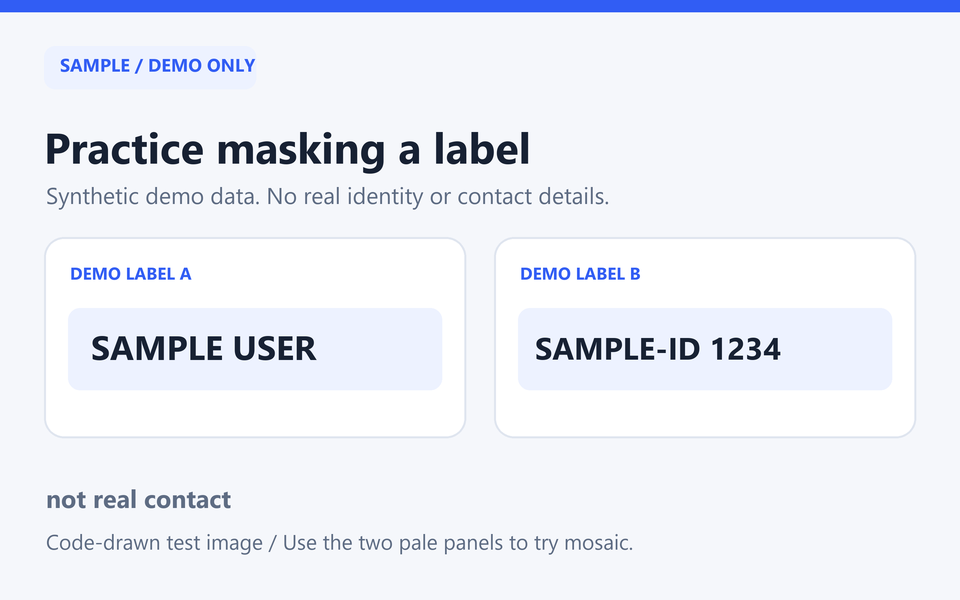
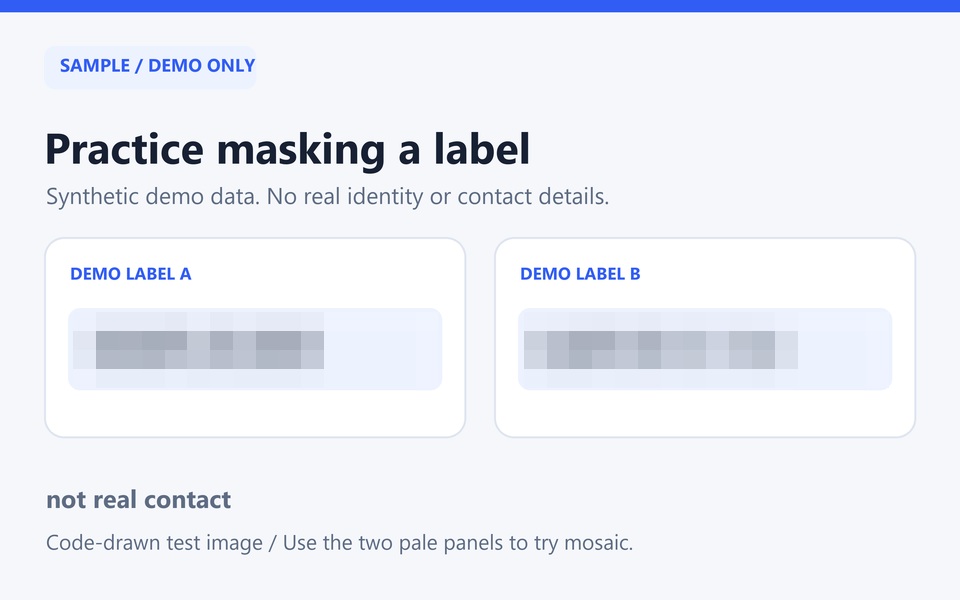
- Output dimensions and limit
- 960 × 600 px · 500 KB · JPG
- Manually placed mosaic areas
- 2 areas
- Mosaic block size slider value
- 40
This demonstrates manual placement and saving. It is not a test of secure anonymization of sensitive information. Output size and appearance can vary with the source, area settings, saved dimensions and browser.
If coverage is incomplete or editing is difficult
- If no area appears, choose Add mosaic and then tap or drag on the photo. Pressing the same tool or Escape cancels placement.
- If the photo pans instead of placing an area, turn Pan preview off. After zooming in to inspect it, position the photo so the area you want to edit is visible.
- If part of a word remains outside, enlarge the area and adjust block size, then convert again. Inspect both the zoomed preview and saved file, and look for nearby clues that may reveal the content.
- If the saved file lacks the latest change, convert again after editing. A file you previously downloaded does not update automatically.
Frequently asked questions
How many mosaic areas can I add?
Up to 12 areas per photo. Use Delete selected to remove just one area, or Undo and Redo to step through your edits.
Does mosaic follow rotation and cropping?
Mosaic stays attached to the source when rotating, flipping and cropping. Elements outside the crop are hidden in the result. Convert again after setting final framing and dimensions, then check coverage.
Does it change my original file?
No. The original file stays unchanged and the editor creates a new file. The Original comparison view hides mosaic. Check which file you select when sharing so you do not send the original by mistake.
How do I save on mobile?
After conversion, use Save or share photo when shown. If downloading does not work, try Save or share file in the other save methods under the result. Open the actual saved file in your gallery or files app to review it.